Import a flight plan
Ways to import trip details
A lot of the ‘journey’ data on the declaration will already have been put together in your flightplan. If you are in the habit of creating a draft flight plan before your create your declarations then you can transfer the data and save time
Trip details can be imported from
- Skydemon
- Foreflight
- Garmin
- easyvfr
- Autorouter
Of course you have to export the flight plan first from your chosen flight planning software. Only with Autorouter can you access content directly if you have entered your Autorouter credentials in the app.
The others require you to save your flight plan. There are numerous ‘gotchas’ For example you might have thought it was straightforward to simply open the standard “SkyDemon.flightplan” file. but this does not contain all the needed trip information. In SkyDemon you save the ‘pilot log’ – it is saved on the desktop version as a ‘.html’ file and on the tablets it is saved as a ‘.pdf’
Note where the flight plan is saved as a pdf (SkyDemon mobile, Foreflight and Garmin) the app uses OCR to interpret the content and may not always achieve a complete result.
there are 2 methods to get flight details into MyGar/Manifest6 app
- Use the flight plan import button within the app to import a pre-saved flight plan file
- Use ‘Open with’ – find the presaved flightplan file, choose ‘open with’ and select Manifest6 –
- note different OS platforms have different ways of implementing ‘open a file with a specific app’
here’s the steps to import a Skydemon ‘Plog’ using method 1
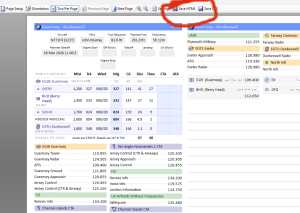 The screenshot shows the desktop version of Skydemon where at the top there is an option to save the pilot log as an html file
the tablet version is similar – select pilot log, you then have to select ‘Print’ then ‘Create’ – you are not asked what type of file, you are simply asked which app you want to open the plog with. on the list of apps you should see manifest6
if you select it, the app will open and create a new declaration. More on that later
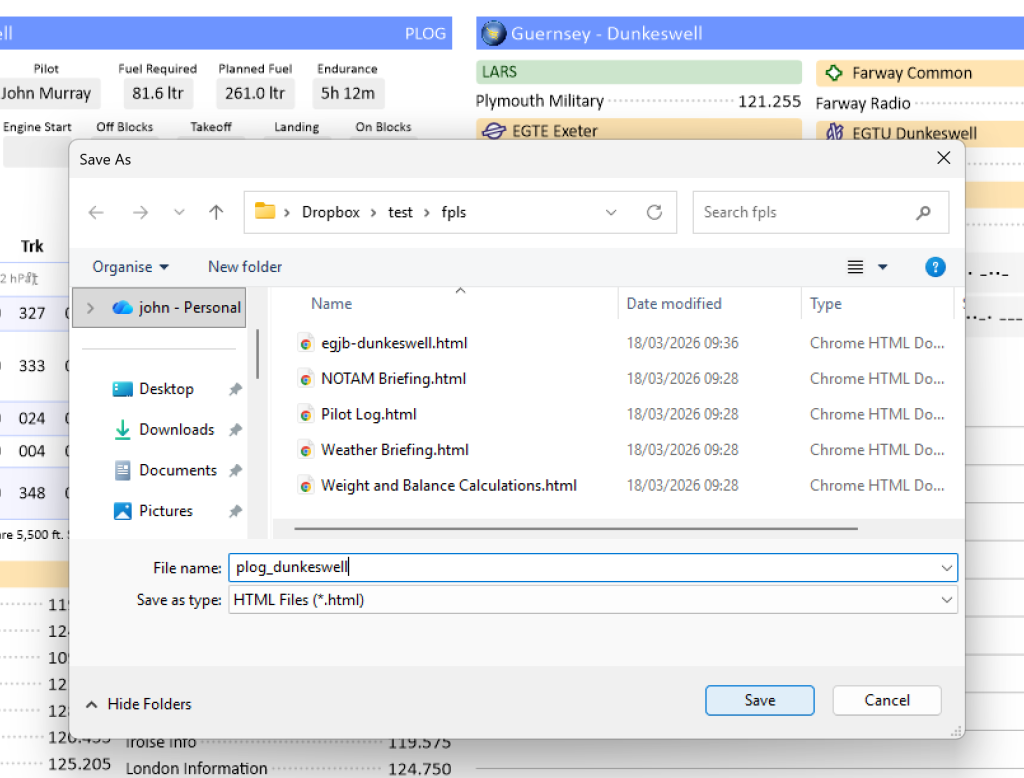
the desktop SkyDemon is more conventional insofar as you will choose the type of file and where to save it- html and a location accessible to the app
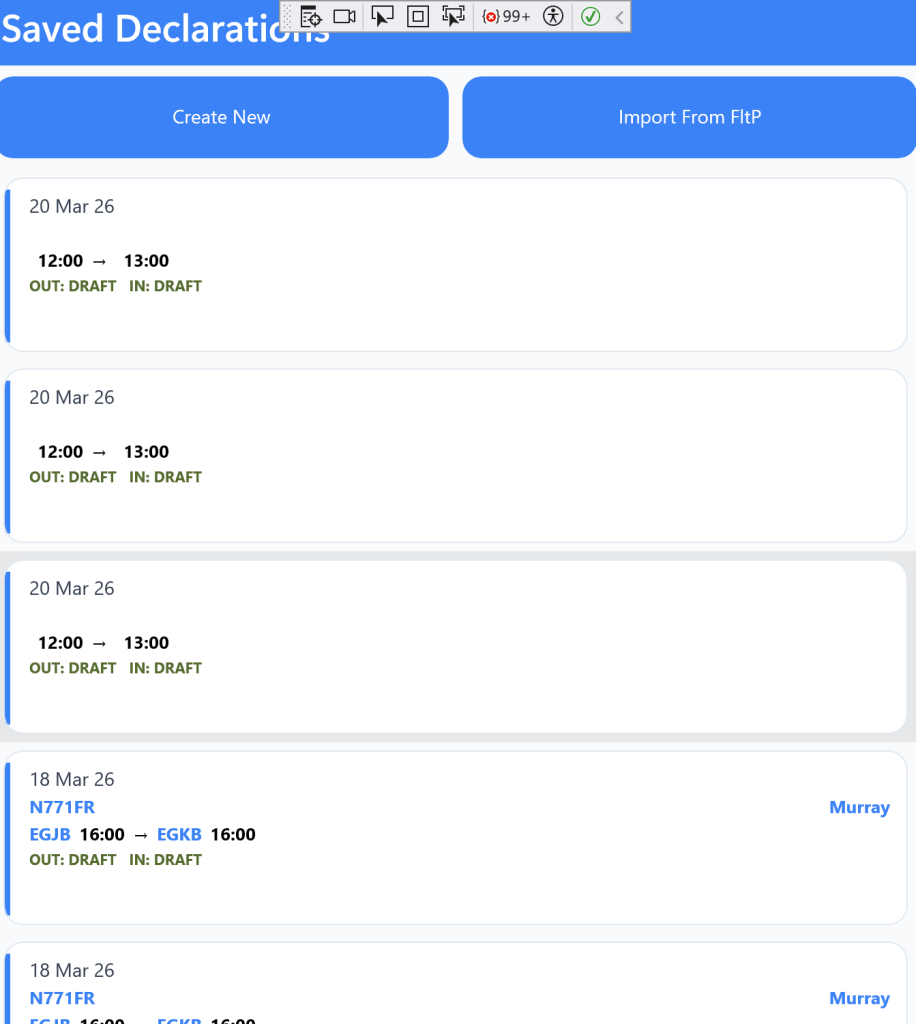
when you click on the main menu ‘create/edit’ in myGar/Manifest6 this list of previous declarations (if any) will appear. At the top right there is a button to ‘import flight plan’ There is a similar button within the edit declaration tab/pages – they both work the same. First you select what type of flightplan it is you are trying to import
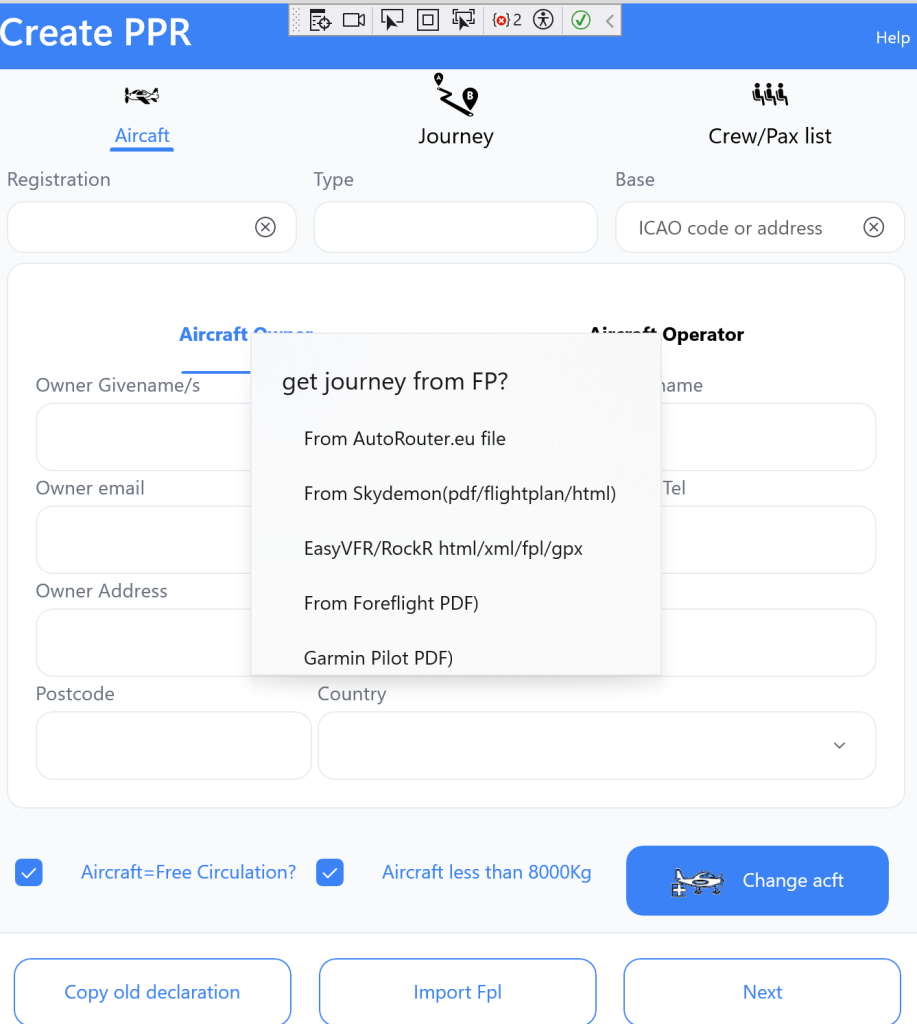
you can see the different types of Fp – In this demonstration we are going to import a SkyDemon PLOG file in html format
A conventional file explorer (or on Mac you would use ‘finder’) appears and you navigate and find the ‘.html’ you previously exported/saved from SkyDemon
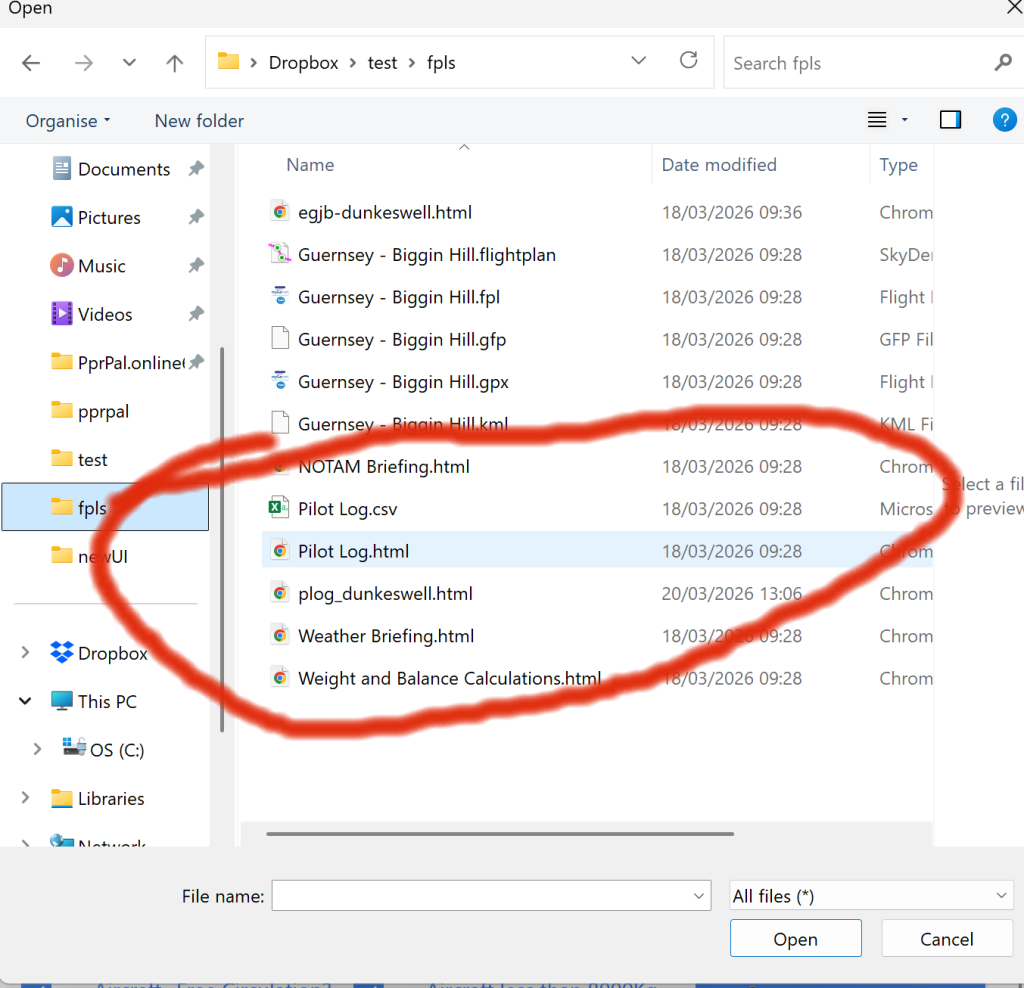 open the file and as much of the content as can be recognised will populate your Gar/declaration. Note if your aircraft registration in SkyDemon matches one you previously save in the app then all the aircraft detail will fill in the Gar aircraft page. Also if you have recorded a pilot in SkyDemon and it matches with a record in your ‘crew/pax’ list then those details will also be filled in. The main thing is that the journey details will be populated. A big ‘gotcha’ here is that often draft SD flightplans are incomplete and it is easy to miss that no Estimated Time Enroute has been completed – check this the same process happens with a saved pdf though the Character Recognition is not 100%
Importing SkyDemon PLOG directly using a tablet
The same process can be used on a tablet where the SkyDemon app sits side by side Manifest6/myGar app
This is the sequence on an android tablet to move the SD flightplan detail into the Manifest6/myGar app.
step1 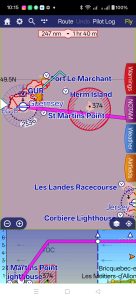 this is the ‘Home’ page in SkyDemon – click Pilot Log
Step 2 now click on ‘Print’
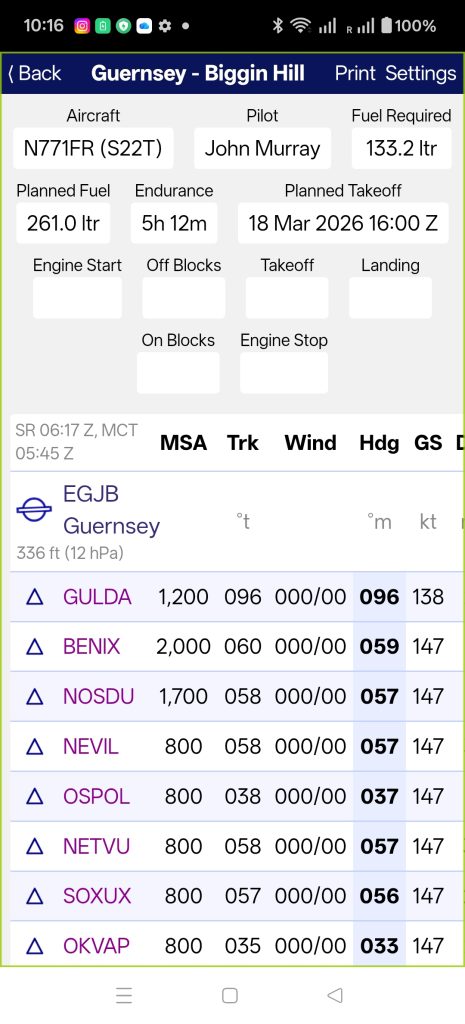
Step 3 now click ‘create’
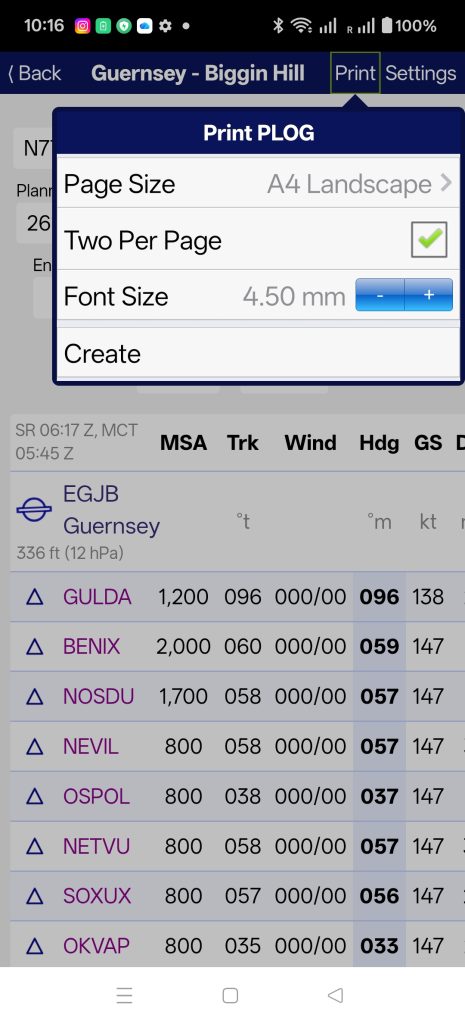
Step 4 you will be presented with an array of apps to open the PLOG file Choose Manifest6
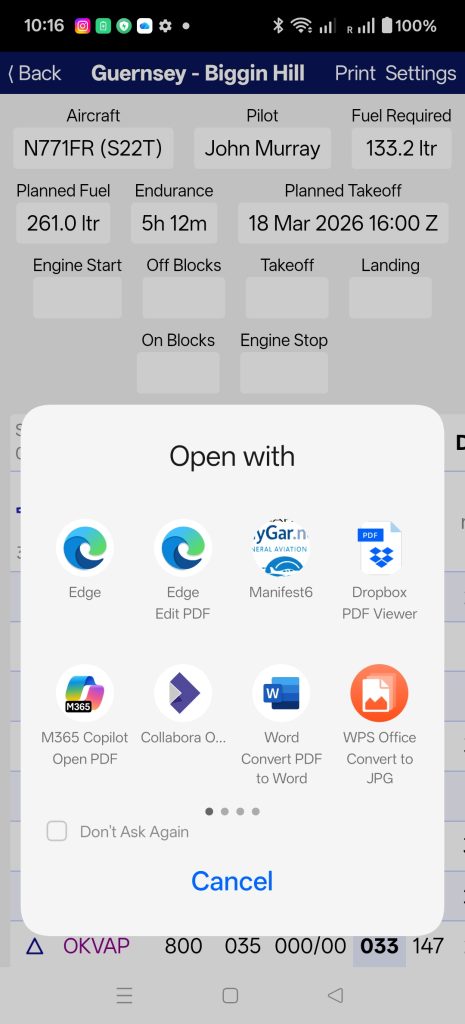
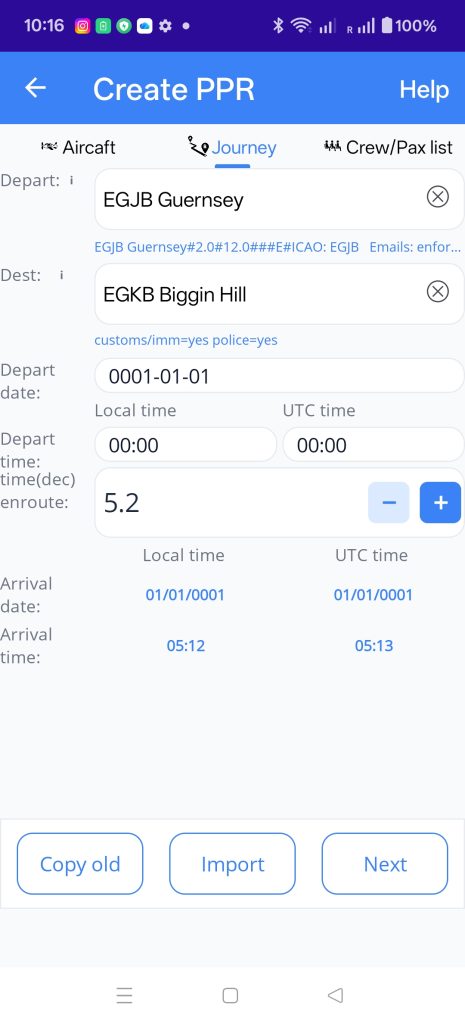 the MyGar/Manifest6 app will open, create a new declaration and open on the 3 tab/page declaration screen with as many fields populated as recognised.
As said above if the aircraft in the FP matches one in MyGar/Manifest6 then that page will be complete. Ditto if the pilot name in SD matches a saved crew. Watch out for the ETE remaining blank
It is possible to do the same on the desktop. Navigate to the saved flightplan file and choose ‘Open with’ if the MyGar/Manifest6 app is installed then you should get the option to open with Manifest6 and it will automatically create as much of the declaration as it can.
Importing other flight plans
the Skydemon and EasyVFR flightplan imports complete the most data. Avoid trying to import a Skydemon.FlightPlan raw file, they save a lot of navigation data but not much that is useful for a GAR. Use the PLOG in html or pdf form . EasyVFR exports to an xml file. this also is successful in completing more fields in the GAR declaration.
Foreflight can export a pdf which can be interpreted with some success – Ditto Garmin though Garmin Pilot does not easily export files
Autorouter fpl import is the simplest of the lot – make sure you’ve entered your autorouter user nameand pwd. Select autorouter.eu -it will offer a list of the most recent 10 flightplans you have in draft on autorouter
Select one and it will populate the journey page . It too tries to match the aircraft registration but there is no crew/pax info in autorouter to extract
Foreflight
One can import a Foreflight flight (note we are not talking about icao flightplans here but the’trip or flight showing date time aircraft origin and destination)
There are 2 ways to do this
- Foreflight Web – if you create your flight on Foreflight Web there is no facility to export an .fpl file, as there is if you are using Forflight on Ios. instead you have to save the navlog to a pdf file and MyGar/Manifest6 will analyse it and import what it caan recognise. The steps to do this are as follows
- on the flights page select ‘navlog’ with your flight selected
- this will generate a ‘log’ table
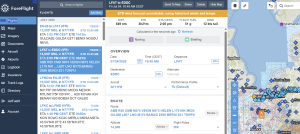
- at the top right there are 2 buttons ‘share’ and ‘print’ Unfortunately foreflight in this respect is a little out of date – the share button simply creates a hyperlink to this page and does not ‘share’ a file as now understood Instead you must select print and print the navlog table to a pdf
- print to pdf
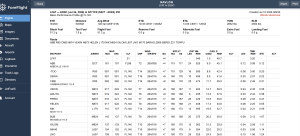
- then save the navlog file with a meaningful title (e.g. FF_egjb_eddc.pdf) to a location you will remember – probably using cloud service then the file will be available across devices
- There are 2 ways to read this flight pdf into MyGar/Manifest6
- from within MyGar/Manifest6 there is a button on the GAR list page next to ‘create new’ labelled ‘Import from FltP’ – There is also such a button (Import fp) within the 3 tab/page garform which allows you to overwrite anything youve got in the form with what is in the flight plan
- find where you saved the pdf and right click, select ‘open with’ , select Manifest6. This will open a new instance of MyGar/Manifet6 with the data from the flight prefilled in a new Gar/gendec form
- Foreflight is primarily an Apple Ios app. Although it is similar in functionality to Foreflight Web it allows the export of a .fpl file. These are more reliable to read than a pdf but the process is the same. Save your flight .fpl with a recognisable name (e.g. FF_egjb_eddc.fpl) to a location which you can easily find later. Then either open the .fpl file using Manifest6 or open Manifest6 and import the .fpl using one of the import FP buttons in Manifest6 app.
- on the Ios foreflight app select flights, and highlight the flight you want to export
- at the top right thers a ‘send to’ icon square with arrow
- click and select ‘share .fpl’ and choose where to send the .fpl
- AirDrop to Mac/PC
Email it to yourself
Save to Files → iCloud Drive / On My iPad
Use any other iOS share target
- AirDrop to Mac/PC