Adding an aircraft
Aircraft Setup
The app allows you to store a dozen aircraft. Pre-saving an aircraft saves time when assembling a GenDec or GAR — you select it from a list and all the details fill in automatically.
What information is needed?
The authorities want to know the registration, make/model, and where the aircraft is usually based. Some authorities also ask whether the aircraft is tax-paid (in free circulation) in their territory and whether it is under 8,000kg — but these fields are usually not mandatory.
The most important information is who is responsible for this aircraft — this could be the owner, operator, charterer, or renter. Where these differ, it is the person responsible for that specific flight that is required. The name of a trust which nominally owns the aircraft is not sufficient.
Where there are multiple owners, the responsible person would usually be the lead owner. If this cannot be determined, save multiple versions of the same aircraft with different Person Responsible entries.
Adding an aircraft
You can add an aircraft in two ways:
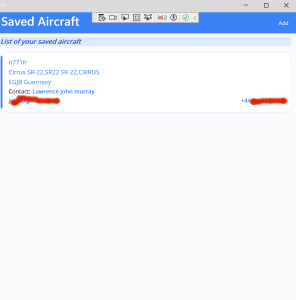
To add a permanent aircraft, tap Manage Aircraft Lists from the main menu. Your saved aircraft appear as a list — first time around the list will be empty. Tap Add in the top right of the navigation bar. |
 |
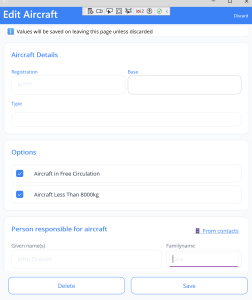
The aircraft entry form
The entry form is a scrolling screen — not all fields are visible at once. Scroll down to see all fields.
|
 |
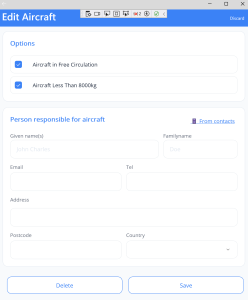
Person responsible
Scroll down to see the Person Responsible section.
Note: when saving an aircraft to your stored list, mandatory fields can be left blank without a warning. The validation warning only appears when you try to include an aircraft with missing details in an actual declaration submission. Note: you may add a person responsible by clicking on the ‘from contacts’ link. This will take you to your phone/tablet contacts. On Desktop because the desktop app cannot see your ‘contacts’ in same way as a phone, you will only see persons you have already added to your crew/pax lists. Also worth noting that given the way in which people save their contacts (e.g. name often a nickname, or family name not in structured contacts field) then the import from contacts often does not populate comprehensively The aircraft saves automatically when you exit using the back arrow on the navigation bar. Alternatively tap Discard on the navigation bar or the Delete button at the bottom of the form to abandon. |
 |
Managing your aircraft list
| Return to Manage Aircraft Lists at any time to edit or delete a saved aircraft.
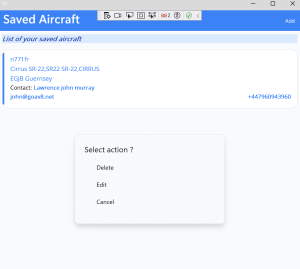
Tap on any aircraft in the list — a popup will appear offering Delete or Edit. Editing uses the same form as above. |
 |
← Back to Help Home | Manifest6 Help — last updated June 2026